
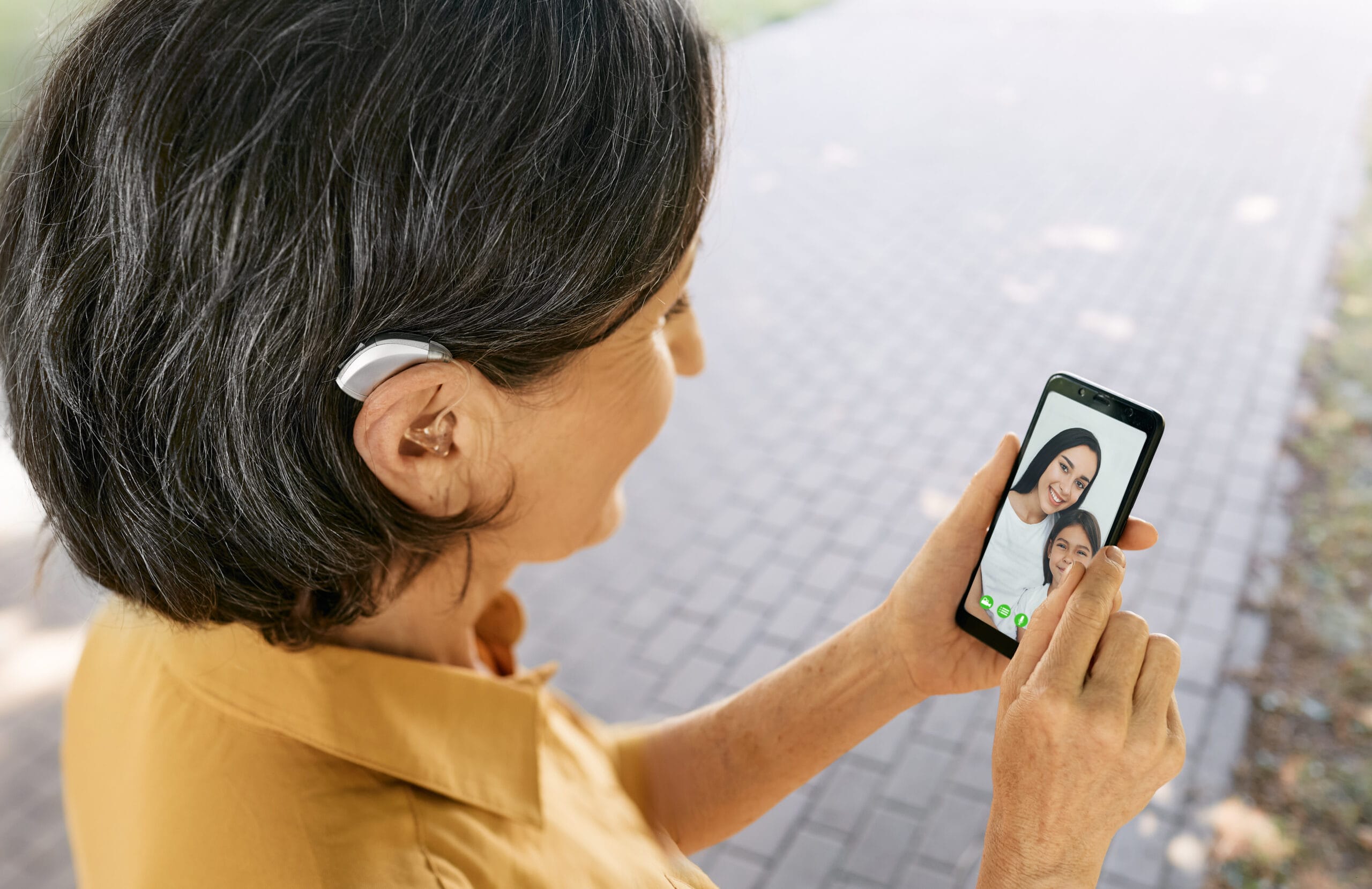
You catch every third word. The caller sounds muffled, and eventually you say, “Let me call you back,” just to escape. Today’s hearing aid-compatible mobile phones can fix much of that frustration. They stream calls straight into hearing aids, turn speech into on-screen text, and flash a light when someone rings. Here’s how to put those tools to work.
Why Does Phone Accessibility Matter for Hearing Loss?
Phone accessibility matters because hearing loss grows more common with age, while the phone remains the main link to family, doctors, and emergency help. Yet many helpful settings sit unused simply because nobody mentioned them. A few minutes in the Accessibility menu can make calls far easier to follow.
The scale of the issue surprises many people. About one in three U.S. adults between 65 and 74 has age-related hearing loss, according to the National Institute on Deafness and Other Communication Disorders, and nearly half of those over 75 have trouble hearing.
How Do Hearing Aids and Phones Work Together?
Hearing aids and phones work together through Bluetooth streaming, which sends call audio directly into your hearing aids, and through hearing aid compatibility (HAC) standards, which limit interference and set minimum volume levels. Newer phones carry a simple “hearing aid-compatible” label, while older models use M and T ratings, with M3 and T3 as the baseline.
You can connect hearing aids to iPhone models under Settings > Accessibility > Hearing Devices if you wear Made for iPhone hearing aids. Many Android phones pair compatible models under Settings > Connected devices. Results vary from one pairing to the next, and the FCC’s hearing aid compatibility guide explains how to check the rating for a specific phone.
What Is Real-Time Captioning on a Phone?
Real-time captioning is a built-in phone feature that turns spoken words into on-screen text as people talk. Captions work during calls, video chats, and streamed shows at no extra cost, and they shine in noisy restaurants where hearing aids struggle. Many phones and carriers also support real-time text (RTT), which sends each letter as you type it mid-call.
How Do You Turn On Live Captions?
Live captions switch on through the Accessibility menu on iPhone and most Android phones, and setup takes under a minute. Captions then appear in a small box you can drag anywhere on the screen, with text size and color you can adjust for easier reading.
On iPhone
iPhone Live Captions sit under Settings > Accessibility > Live Captions. Flip the toggle on, then tap Appearance to enlarge or bold the text. The feature runs on iPhone 11 and newer.
On Android
The Live Caption Android setting usually lives under Settings > Accessibility > Live Caption, though Samsung tucks it inside Hearing enhancements. On many newer models, captions also work during regular phone calls.
Practice on a relaxed call with a patient friend before an important one, like your doctor’s office calling back.
What Other Hearing Features Are Built Into Phones?
Most smartphones also include audio balance controls, flashing alerts, and custom hearing profiles, all inside the Accessibility menu with no extra apps required.
- Audio balance: Shift sound toward your stronger ear.
- Flash alerts: Your camera light blinks for calls and texts.
- Hearing profiles: iPhone’s Headphone Accommodations and Samsung’s Adapt Sound tune audio to your ears.
- Voice assistants: Siri or Google Assistant can send a dictated text when a call feels like too much.
Our tips for clearer cell phone audio cover accessories like amplifiers, and this roundup of everyday accessibility features has even more.
What Should You Look for in a Hearing Aid-Compatible Phone?
A strong hearing aid-compatible phone carries the FCC’s “hearing aid-compatible” label, or at least M3 and T3 ratings on older models. It should also stream audio over Bluetooth and offer built-in live captions. Phones that check all three boxes typically handle calls and noisy rooms far better than models that meet only the minimum.
Ask whether a phone works with your specific hearing aid and how loud the earpiece gets. Basic flip phones often earn solid HAC ratings but skip captions, so weigh simplicity against the features you’ll use, along with overall call quality. Every one of the phones we carry meets the standard for hearing aid-compatible mobile phones, and our 30-day money-back guarantee gives you time to test calls with your own hearing aids.
How Can You Make Video and Group Calls Easier?
Video and group calls get easier when captions stay on and only one person speaks at a time. Ask family to face the camera, mute when they aren’t talking, and call from quiet rooms. Adult children setting up regular check-in calls can share these ground rules ahead of time.
What Goes on a Hearing Support Checklist?
A hearing-friendly phone setup comes down to five quick steps:
- HAC rating confirmed for your phone
- Live captions turned on and tested
- Call volume and audio balance adjusted
- Bluetooth streaming paired with your hearing aids, if supported
- Family briefed on clearer-call habits
If a setting confuses you at first, give it another try later. Our accessibility settings guide covers even more options.
Making Every Call Easier to Hear and Understand
Captions, streaming, and a few volume tweaks can turn a frustrating call back into a real conversation. Whether you’re upgrading your own device or shopping for phones for hard-of-hearing relatives, Affinity Cellular offers hearing aid-compatible phones, no-contract plans, and USA-based support for every hearing need.